- English
-
EnglishDeutschItaliaFrançais한국의русскийSvenskaNederlandespañolPortuguêspolski繁体中文SuomiGaeilgeSlovenskáSlovenijaČeštinaMelayuMagyarországHrvatskaDanskromânescIndonesiaΕλλάδαБългарски езикGalegolietuviųMaoriRepublika e ShqipërisëالعربيةአማርኛAzərbaycanEesti VabariikEuskeraБеларусьLëtzebuergeschAyitiAfrikaansBosnaíslenskaCambodiaမြန်မာМонголулсМакедонскиmalaɡasʲພາສາລາວKurdîსაქართველოIsiXhosaفارسیisiZuluPilipinoසිංහලTürk diliTiếng ViệtहिंदीТоҷикӣاردوภาษาไทยO'zbekKongeriketবাংলা ভাষারChicheŵaSamoa日本語SesothoCрпскиKiswahiliУкраїнаनेपालीעִבְרִיתپښتوКыргыз тилиҚазақшаCatalàCorsaLatviešuHausaગુજરાતીಕನ್ನಡkannaḍaमराठी

HP Battery Calibration Guide and Solutions
Catalog
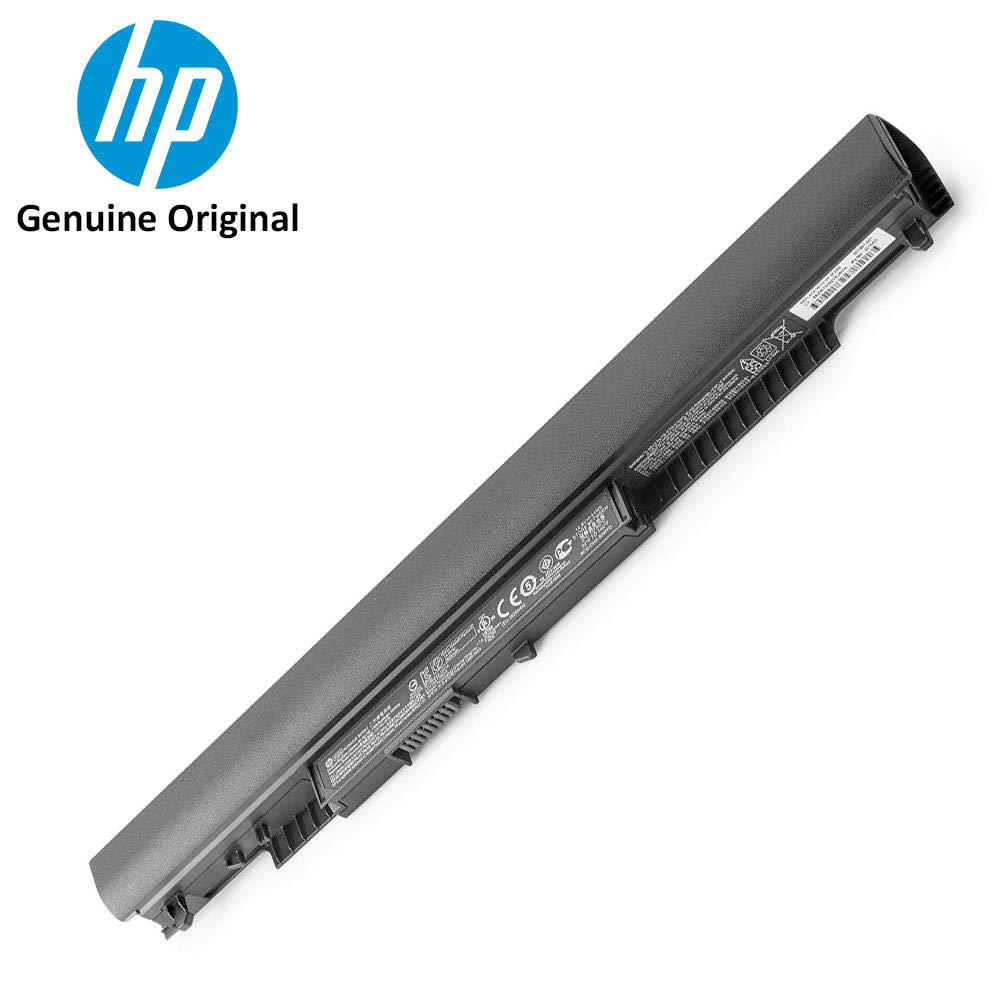
Manual Calibration of HP Laptop Battery
Navigating Power Settings
In the "System" tab, transition to the "Power & sleep" settings, where multiple options that dictate battery behavior reside. Under "Related settings," click on "Additional power settings." Engaging deeply with these settings enables the meticulous adjustments for effective battery utilization.
Configuring Advanced Power Settings
On the next screen, select "Change when to turn off the display."
Follow this by choosing "Change plan settings." This pathway heads to the adjustments for calibration.
Move on to select "Change advanced power settings." Within the "Battery" section, set the " battery action" to hibernate.
Adjust the critical battery level to 5%. Applying and saving these configurations ensures that the calibration criteria are securely established.
Implementing the Calibration Cycle
With the settings in place, unplug the charger and use the laptop until it powers off at the critical battery level. This step replicates in every scenarios where devices are used until battery depletion. Once the laptop shuts down, wait for a few hours before recharging it to 100% while it remains off. It allows the battery to stabilize and cool down, pivotal for successful calibration. This cycle completes the manual calibration, aiding in recalibrating battery life indicators and enhancing overall reliability.
Testing and Calibrating HP Laptop Batteries
HP offers program tailored for testing and calibrating laptop batteries. This process is designed to counter the natural decline in battery capacity over time which ultimately impacts the device's functionality. Frequent tests and calibrations allow users to pinpoint and rectify potential issues, thereby promoting a longer battery lifespan.
Battery performance degradation is an unavoidable aspect of the life of any rechargeable battery. Factors such as frequent charging and discharging cycles high operational temperatures and draining the battery below optimal levels can accelerate this degradation. HP’s battery testing and calibration program helps identify early signs of failure. It adjusts the system's grasp of the battery's true charge capacity, ensuring more precise battery life predictions and enhanced power management.
Calibration typically encompasses several steps:
• Fully charging the battery
• Completely discharging it
• Fully charging it again
Though simple, this sequence aligns the battery’s charge gauge with its actual charge capacity, resulting in more accurate performance metrics. Many have observed useful improvements in battery longevity and reliability after making periodic calibration a part of their device maintenance.
Testing the HP BatteryEvaluating the health of an HP battery involves more than simply checking its charge status. It requires a comprehensive assessment of its overall condition. Well, parameters like charging capacity, discharge rate, and potential faults play unique roles. For this purpose, the "HP PC Hardware Diagnostics" tool is specifically designed and highly recommended. To carry out this diagnostic test effectively, follow these steps:
• Run the program with administrator privileges. This access level ensures you can tap into all necessary system resources without restrictions.
• Navigate to the 'Power' option and select 'Battery Check'. This selection initiates a focused set of diagnostics.
During this procedure, the tool conducts a battery of diagnostic tests. These tests meticulously measure:
• Charging capacity
• Discharge rate
• Potential faults
What is particularly interesting is how this process not only reveals the current state of the battery but also offers valuable insights into its longevity. The culmination of this assessment is a detailed report, which encapsulates the results and logs of the tests performed.
Regular usage of such tools can preempt battery issues, encouraging a more proactive stance towards device maintenance. Additionally, understanding these diagnostic results effectively equips users to make well-informed decisions about battery usage and replacement. This not only optimizes device performance but also extends its lifespan.
Calibrating the HP BatteryProper calibration keeps the battery’s longevity and efficiency in check. Accurate calibration means precise battery level readings, aiding in the prevention of unforeseen shutdowns and enhancing overall usage efficiency.
Once your laptop is fully charged, disconnect the charger and let the battery discharge until it’s completely drained. It helps the system grasp the battery’s full capacity which is for recalibrating battery management software.
After your battery is dead remove the charger and press the power button for 5 seconds. It’s quite important it resets any residual energy ensuring no leftover power affects the calibration process.
When the screen lights up again, tap the f2 key repeatedly to get into the system diagnostics screen. Select "Component Tests" and then "Memory Extensive Test," followed by "Loop until error." This test discharges any leftover power and stabilizes the battery.
After approximately 6 hours, reconnect the charger and recharge the laptop to 100%. To fully saturate the battery cells and balance them equally, keep the charger connected for at least an extra 3 hours once it’s fully charged.
Once your laptop is fully charged resist the urge to use it immediately. Wait for an additional 2 hours. Allowing the battery’s chemistry to stabilize, which results in ensuring accurate power readings and extending the battery’s life span.
What to Do If Your HP Laptop Battery Won't Calibrate?
Many laptops, especially older models, encounter challenges in battery calibration due to wear and tear over time. Observable signs include:
• Calibration warnings
• Prolonged charging cycles
• Improper charging or discharging behaviors
• Reduced backup times
These symptoms often signal underlying issues that impede calibration processes. The variances in internal component quality and manufacturing consistency.
Common Indicators of Calibration Failure
When a laptop displays frequent calibration warnings, it often points to a malfunctioning battery that cannot hold or interpret charge levels accurately. These warnings are typically an early alert to more severe battery issues.
Extended charging durations can indicate that the battery's capacity has diminished, thereby requiring an unusually long time to reach a full charge. This can be compounded by the degradation of internal battery components. Temperature variations can indeed affect charging times and efficiency.
Inconsistent charging or discharging behaviors such as the battery discharging rapidly despite indicating a full charge or failing to charge properly, can signify calibration issues. These irregularities impact the laptop’s performance and reliability. They are a strong indicator worth investigating.
A dramatic decrease in battery backup time suggests that the battery may no longer be capable of holding a charge effectively. This issue often necessitates more frequent charging and reduces the overall portability and convenience of the laptop. Opt for batteries with proven longevity and regular maintenance to preserve both.
Practical Solutions and Preventive Measures
Regular maintenance and monitoring of battery health can help mitigate calibration problems. Practices such as:
• Avoiding extreme temperatures
• Preventing partial discharges
• Maintaining an appropriate charging schedule
These habits can extend battery life and improve calibration reliability. While general guidelines exist, unique usage patterns necessitate personalized schedules.
Implementing battery management tools that provide insights into battery health and performance can be beneficial. These tools can assist in identifying potential issues early allowing for timely maintenance for replacement. They certainly provide valuable data and convenience yet hands-on checks remain irreplaceable.
For persistent calibration failures consulting with technical support can provide solutions tailored to specific issues. Expert assistance can often address complex calibration problems that standard troubleshooting cannot resolve. If calibration tools and basic troubleshooting fail to improve performance, that’s the cue to seek expert advice.
Alternative Methods to Calibrate Your HP Laptop Battery
Successfully calibrating an HP laptop battery can be a multifaceted task. It may involve utilizing proprietary HP software, exploring the BIOS utility, or engaging in a manual calibration process. Each approach has its own set of strengths and can address distinct calibration challenges. If one method is ineffective, systematically trying the others before resorting to advanced diagnostics is a prudent strategy.
HP Software Calibration
HP offers specialized software tools designed to facilitate battery calibration. These proprietary programs simplify the calibration process, making it accessible even for users with limited tech-savvy. Historically, these tools have demonstrated a track record of restoring battery performance to satisfactory levels.
The software is crafted to fine-tune settings that average users might overlook, delivering a seamless experience.
BIOS-Based Calibration
The BIOS method serves as another compelling option for battery calibration. This approach entails entering the laptop's BIOS settings and using built-in diagnostic utilities to perform the calibration. The BIOS environment allows for in-depth hardware-level adjustments, which can be particularly effective for persistent battery performance issues.
Indeed, the BIOS can access deeper hardware settings that often remain hidden in software-based solutions allowing for more granular control.
Manual Calibration
Undertaking manual calibration involves a series of careful steps such as fully discharging and then recharging the battery. This hands-on approach can be indispensable when software-based methods fall short. Moreover, it allows a user to observe battery behavior firsthand potentially unveiling underlying issues.
The hands-on nature of the process offers a direct look at how the battery responds, revealing nuances that software might miss.
Signs it’s Time to Replace Your HP Laptop Battery
If calibration techniques prove ineffective, it may suggest that the battery has reached the end of its usable life. Rechargeable batteries undergo chemical changes over time affecting their efficiency. These changes result in shorter usage times and extended charging periods.
Replacing the battery can improve device performance. Portable electronics in particular have batteries designed with a limited lifespan and are meant to be replaced eventually.
Regularly check battery health via system diagnostics. Observe performance metrics such as rapid draining under low load conditions these can indicate the necessity for a new battery.
A timely battery replacement aids in maintaining operational efficiency and prevents potential damage to the device. Delays might result in overheating leakage or swelling which could jeopardize other components. Regular maintenance and preemptive part replacements are strategies often utilized to prolong device lifespan.
Conclusion
Forces users to stay tethered to a power outlet stripping away the convenience of true portability. Thus, maintaining optimal battery health becomes a subject worthy of attention and care. Calibration is a noteworthy technique that while simple proves to be highly effective in keeping your HP laptop performing at its best.
Related Blog
-
How Many Zeros in a Million, Billion, Trillion?
![How Many Zeros in a Million, Billion, Trillion?]()
July 29th, 2024
Million represents 106, an easily graspable figure when compared to everyday items or annual salaries. Billion, equivalent to 109, starts to stretch t... -
IRLZ44N MOSFET Datasheet, Circuit, Equivalent, Pinout
![IRLZ44N MOSFET Datasheet, Circuit, Equivalent, Pinout]()
August 28th, 2024
The IRLZ44N is a widely-used N-Channel Power MOSFET. Renowned for its excellent switching capabilities, it is highly suited for numerous applications,... -
Battery Temperature Too Low, Charging Stopped. How to Fix It?
![Battery Temperature Too Low, Charging Stopped. How to Fix It?]()
October 6th, 2024
Mobile phone battery charging issues are common but can be effectively managed. Temperature plays a big role in battery efficiency, as smartphone batt... -
BC547 Transistor Comprehensive Guide
![BC547 Transistor Comprehensive Guide]()
July 4th, 2024
The BC547 transistor is commonly used in a variety of electronic applications, ranging from basic signal amplifiers to complex oscillator circuits and... -
Comprehensive Guide to SCR (Silicon Controlled Rectifier)
![Comprehensive Guide to SCR (Silicon Controlled Rectifier)]()
April 22th, 2024
Silicon Controlled Rectifiers (SCR), or thyristors, play a pivotal role in power electronics technology because of their performance and reliability. ... -
LR621, SR621SW, 364, AG1 Battery Equivalents and Replacements
![LR621, SR621SW, 364, AG1 Battery Equivalents and Replacements]()
July 15th, 2024
LR621 and SR621SW button batteries are prevalent in compact electronic devices like watches, small toys, calculators, and remote keys. Multiple manufa... -
Fundamentals of Op-Amp Circuits
![Fundamentals of Op-Amp Circuits]()
December 28th, 2023
In the intricate world of electronics, a journey into its mysteries invariably leads us to a kaleidoscope of circuit components, both exquisite and co... -
Comparing NMOS and PMOS Differences and Applications
![Comparing NMOS and PMOS Differences and Applications]()
November 15th, 2024
Understanding the differences between NMOS and PMOS transistors is important in designing efficient circuits. NMOS (N-type Metal-Oxide-Semiconductor) ... -
A Complete Guide to Multiplexers and Their Role in Digital Systems
![A Complete Guide to Multiplexers and Their Role in Digital Systems]()
September 20th, 2025
Multiplexers are components in digital systems, designed to channel multiple input signals into a single output line using binary logic and control si... -
What Do STD, AGM, and Gel Mean On a Battery Charger
![What Do STD, AGM, and Gel Mean On a Battery Charger]()
July 10th, 2024
Traditional lead-acid battery chargers are known for their simplicity and reliability. They have been serving their purpose effectively for years, lar...



Hot Parts
- RT0603DRD076K2L
- MKL26Z256VMP4
- ERA-3AEB243V
- PST3242NR
- 12103G155ZAT4A
- GRM1555C1E2R2BZ01D
- GRM0225C1E7R2WA03L
- ICL7650SCBA-1Z
- SP211CT-L
- SAA7119E/V1
- ADS7846N/2K5
- MAX3241CUI
- CWR19MB106KBHC
- TC58NYG1S8HBAI6
- R5S72643P144FP#UZ
- CGJ4J2X7R0J155K125AA
- SP385ECT/TR
- ADSP-BF526BBCZ-4A
- MIC94310-PYMT-TR
- C0603C0G1E060C
- HT66F004
- M29W256GL-70N6
- RTD2525L
- RCWE0603R470FKEA
- MCP3551-E/SN
- VC0529BRVC
- LTC3811EUHF#PBF
- ADR421BRZ
- MD3222N-3072
- 5CEBA4U15C8N
- XCV400-4BG432C
- 04025A240FAT2A
- SP5024BS
- 12102C223MAT2A
- PRD1037C
- CS5341CZZ
- 08051U7R5BAT2A
- MAX5304EUA+T
- ATF750LVC-15XU
- S29AL016J70BFI013
- IPB020NE7N3GATMA1
- LT3045IMSE-1#PBF
- T491D476M020AT4820
- 4230-T130-K0CU-10A
- 1AB16157AAAA
- HD6417707RF60A
- ML610Q172
- TSUM58HJ-LF
- BUK9Y12-40E
- ERA3AEB513V